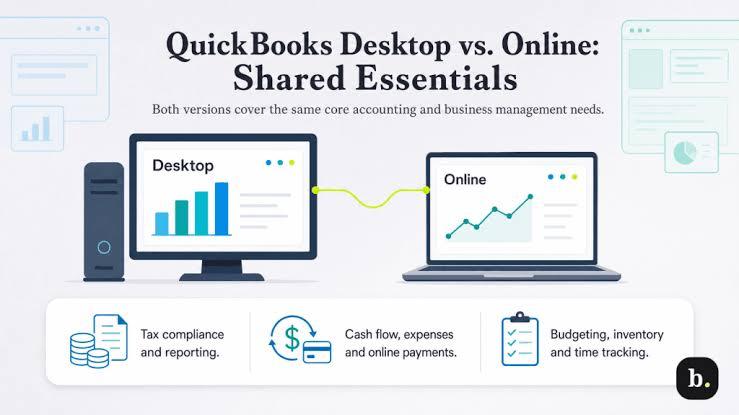

Desktop vs QuickBooks Online Migration: Which Method Is Better?
Compare QuickBooks Desktop vs QuickBooks Online migration methods. Learn the differences, benefits, limitations, and which migration option is best for your business.
Businesses often need to move their accounting data when upgrading software, changing systems, or moving from desktop-based accounting to cloud solutions. One of the most common decisions users face is choosing between QuickBooks Desktop migration and QuickBooks Online migration.
While QuickBooks Desktop provides powerful accounting features with local data storage, QuickBooks Online offers cloud-based access, automatic updates, and easier collaboration. Choosing the right migration method depends on your business needs, data requirements, number of users, and long-term goals.
Before starting any migration process, proper planning is essential. Using tools like the QuickBooks migration tool or following a structured backup and transfer process can help reduce the risk of data loss.
This guide compares Desktop vs QuickBooks Online migration, explains the differences, and helps you determine which option is better for your business.
Understanding QuickBooks Desktop Migration
QuickBooks Desktop migration involves transferring your existing QuickBooks Desktop data from one computer to another or upgrading to a different desktop environment.
Common reasons users migrate QuickBooks Desktop include:
- Replacing an old computer
- Moving accounting data to a new system
- Upgrading QuickBooks versions
- Transferring company files between devices
Desktop migration usually involves moving:
- Company files
- Customer records
- Vendor information
- Transaction history
- Reports
- Inventory data
- Payroll information
Users can migrate using:
- QuickBooks migration tool
- Backup and restore method
- Manual company file transfer
Understanding QuickBooks Online Migration
QuickBooks Online migration involves moving accounting data from QuickBooks Desktop or another accounting platform into the cloud-based QuickBooks Online environment.
This process allows businesses to access their financial information from anywhere with an internet connection.
QuickBooks Online migration may include transferring:
- Customer data
- Vendor records
- Chart of accounts
- Bank information
- Transactions
- Products and services
- Reports
The migration process usually requires:
- Data preparation
- Compatibility checking
- Backup creation
- Online conversion
- Data verification
QuickBooks Desktop Migration vs QuickBooks Online Migration: Key DifferencesFeatureQuickBooks Desktop MigrationQuickBooks Online MigrationAccessibilityLimited to installed devicesAccess anywhereUpdatesManual updatesAutomatic updatesCollaborationRequires network setupMultiple users can access remotelyInternet RequirementUsually not requiredRequires internet connectionControl Over FilesMore direct controlManaged through cloud platformMigration ComplexityUsually simpler between computersRequires data conversion
Benefits of QuickBooks Desktop Migration1. Maintains Existing Desktop Environment
Moving QuickBooks Desktop to another computer allows businesses to continue using their familiar setup.
You can keep:
- Existing workflows
- Desktop features
- Customized reports
- Company preferences
2. Better Control Over Data
With QuickBooks Desktop, company files remain stored locally.
This gives users more control over:
- File locations
- Backup schedules
- Data access
3. Useful for Large Company Files
Businesses with extensive accounting history may prefer Desktop migration because it handles large amounts of data differently than cloud platforms.
4. Keeps Desktop-Specific Features
Some QuickBooks Desktop editions include features that may not be available in the same way online.
Examples:
- Advanced inventory tools
- Industry-specific features
- Detailed reporting options
Benefits of QuickBooks Online Migration1. Access Anywhere
QuickBooks Online allows users to access accounting data from:
- Office computers
- Home devices
- Mobile devices
This flexibility helps businesses manage finances remotely.
2. Easier Collaboration
Multiple users can work together without setting up complex network connections.
Useful for:
- Business owners
- Accountants
- Bookkeepers
- Remote teams
3. Automatic Updates
QuickBooks Online handles software updates automatically.
Users do not need to manually install updates or maintain desktop software.
4. Cloud Backup Protection
Cloud-based storage reduces dependence on a single computer.
This helps protect data from:
- Hardware failure
- Computer damage
- Local storage problems
Which Migration Method Is Better?
The better option depends on your business requirements.
Choose QuickBooks Desktop Migration If:
You should consider Desktop migration if you:
✔ Prefer local data control
✔ Need advanced desktop features
✔ Work with large company files
✔ Want to continue using your current workflow
✔ Have limited internet access
Choose QuickBooks Online Migration If:
QuickBooks Online may be better if you:
✔ Need remote access
✔ Have multiple users
✔ Want automatic updates
✔ Prefer cloud-based accounting
✔ Work with accountants remotely
Factors to Consider Before Choosing a Migration Method1. Business Size
Small businesses may benefit from QuickBooks Online because of flexibility and accessibility.
Larger businesses with complex accounting needs may prefer Desktop.
2. Number of Users
Consider how many people need access.
QuickBooks Online is often easier for teams because users can access the system remotely.
3. Data Complexity
Review:
- Company file size
- Inventory requirements
- Payroll setup
- Custom reports
Complex data may require additional preparation before migration.
4. Budget Considerations
Compare:
- Subscription costs
- Software licenses
- Maintenance expenses
- Hosting costs
Choose the option that fits your long-term financial plan.
How to Prepare Before QuickBooks Migration
Regardless of which method you choose, preparation is important.
Follow these steps:
Step 1: Create a Backup
Always create a backup before migration.
A backup protects your company data if something goes wrong.
Step 2: Review Your Company File
Check:
- Data accuracy
- File size
- Existing errors
- Unused information
Step 3: Update QuickBooks
Install the latest available updates before migration.
Step 4: Verify Migration Compatibility
Check whether your:
- QuickBooks version
- Operating system
- Company file
are compatible with your chosen migration method.
Common QuickBooks Migration Problems
During migration, users may experience:
QuickBooks Migration Failed Unexpectedly
Possible causes:
- Corrupted company files
- Interrupted transfer
- Compatibility issues
QuickBooks Migration Tool Not Working
Common reasons:
- Permission problems
- Outdated QuickBooks
- Security software blocking files
Missing Data After Migration
Possible causes:
- Incorrect conversion
- Incomplete transfer
- Unsupported data types
Always verify your data after migration.
QuickBooks Desktop to Online Migration Checklist
Before migrating:
✅ Create a complete backup
✅ Verify company file health
✅ Check data compatibility
✅ Review reports and transactions
✅ Confirm user requirements
✅ Test migrated data
Frequently Asked QuestionsIs QuickBooks Online better than QuickBooks Desktop?
It depends on your business needs. QuickBooks Online is better for remote access and collaboration, while QuickBooks Desktop may be better for advanced features and local control.
Can I migrate QuickBooks Desktop to QuickBooks Online?
Yes. QuickBooks provides options to move Desktop company data to Online, but preparation and compatibility checks are important.
Should I use the QuickBooks migration tool before moving?
Yes. The QuickBooks migration tool can help simplify the process when transferring QuickBooks Desktop data between computers.
Will I lose data during QuickBooks migration?
You can reduce the risk of data loss by creating backups, verifying files, and following proper migration steps.
Final Thoughts
Choosing between Desktop vs QuickBooks Online migration depends on your business goals, workflow, and accounting requirements.
QuickBooks Desktop migration is often better for businesses that need advanced features, local control, and traditional workflows. QuickBooks Online migration is a better choice for businesses that need flexibility, remote access, and easier collaboration.
Before starting the migration process, create a backup and understand your migration options. A properly planned transfer can help you move your accounting data safely and continue business operations without disruption.
Vigortrix Review: Is It Worth Trying? Results, Pricing & Where to Buy
What Is Vigortrix? Vigortrix is a men's vitality dietary supplement designed to support e...




Golden Touch Fusion CBD – Premium Quality and Natural Wellness Support
What Are Golden Touch Fusion CBD? Golden Touch Fusion are a cannabidiol (CBD) supplement...