
HP Printer Offline Fix: Complete Step by Step Guide for All Models
Let’s walk through a complete, step-by-step guide to get your HP printer back online.
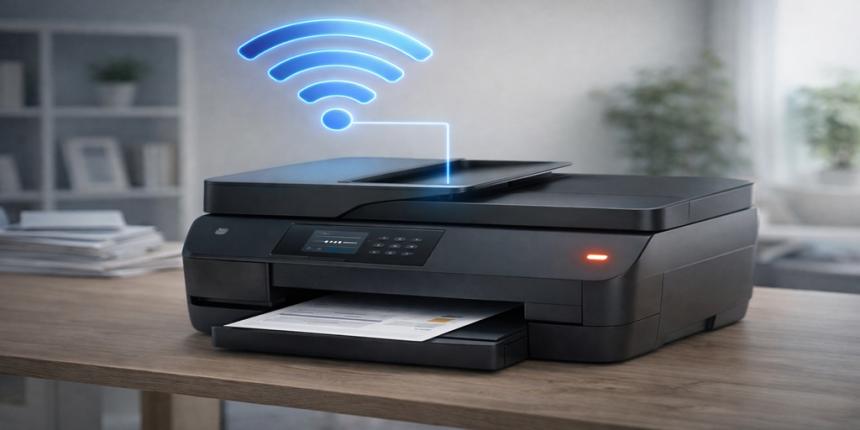
You send a print command, wait a few seconds… and then see the message: “HP printer is offline.”
It’s frustrating. Especially when you need something printed urgently.
The good news? This issue is extremely common, and in most cases, you can fix it in under 10–15 minutes. No tech expertise needed.
Let’s walk through a complete, step-by-step guide to get your HP printer back online.
Why Does Your HP Printer Show Offline?
Before fixing the problem, it helps to know why it happens.
When your HP printer shows offline, your computer is unable to communicate with the printer. This can happen due to:
- Weak or disconnected WiFi
- Printer set to offline mode
- Stuck print jobs in the queue
- Outdated or corrupted drivers
- Incorrect printer settings or ports
Sometimes it’s just a small glitch. Other times, it needs a few quick adjustments.
Step 1: Restart Everything First
This is the simplest fix, but don’t skip it.
- Turn off your HP printer
- Shut down your computer
- Unplug your WiFi router for 1–2 minutes
- Turn everything back on
Now try printing again.
A fresh restart clears temporary errors and restores connection.
Step 2: Check Printer Connection
This is where most offline issues begin.
If You’re Using WiFi:
- Make sure your printer is connected to the same network as your computer
- Check WiFi signal strength on the printer display
- Reconnect to your network if needed
If You’re Using USB:
- Ensure the cable is properly connected
- Try another USB port
- Replace the cable if it’s damaged
Even a slight connection issue can cause the HP printer offline error.
Step 3: Set HP Printer as Default
If your system is sending print jobs to another device, your printer won’t respond.
To fix this:
- Go to Control Panel
- Click Devices and Printers
- Locate your HP printer
- Right-click and select Set as default printer
Make sure you see a green checkmark on it.
Step 4: Disable “Use Printer Offline”
This setting can silently cause your printer to stay offline.
Here’s how to turn it off:
- Open Devices and Printers
- Right-click your HP printer
- Click See what’s printing
- Select Printer from the top menu
- Uncheck Use Printer Offline
Once disabled, your printer should come back online immediately.
Step 5: Clear the Print Queue
A stuck document can block all new print jobs.
To clear it:
- Open the printer queue
- Cancel all pending print jobs
- Restart your printer
This removes any corrupted or stuck files causing the issue.
Step 6: Restart Print Spooler Service
The print spooler controls all printing processes in Windows. If it stops working, your printer may appear offline.
To restart it:
- Press Windows + R
- Type services.msc and press Enter
- Find Print Spooler
- Right-click and select Restart
This step often fixes deeper system-level issues.
Step 7: Update or Reinstall HP Printer Drivers
Outdated drivers are one of the biggest reasons printers go offline.
To update drivers:
- Open Device Manager
- Locate your HP printer
- Right-click and select Update driver
To reinstall:
- Remove the printer from your system
- Download the latest driver from HP’s official website
- Install it again
Updated drivers ensure proper communication between your printer and computer.
Step 8: Check Printer Port Settings
Incorrect port selection can prevent your printer from responding.
Here’s how to check:
- Go to Devices and Printers
- Right-click your HP printer
- Click Printer Properties
- Open the Ports tab
- Ensure the correct port is selected
If unsure, switch to the appropriate USB or network port.
Step 9: Use HP Print and Scan Doctor
HP provides a free tool to diagnose and fix issues automatically.
- Download HP Print and Scan Doctor
- Run the tool
- Follow on-screen instructions
It can detect and fix connection, driver, and queue issues quickly.
Step 10: Reset Your HP Printer (Last Resort)
If nothing else works, resetting your printer can help.
- Open printer settings
- Select Restore Factory Defaults
- Confirm the reset
This will erase saved settings like WiFi credentials, so you’ll need to reconnect afterward.
Common Causes People Overlook
Even after fixing the issue, it can return if certain things are ignored.
Here are a few common mistakes:
- Using unstable or public WiFi networks
- Not updating printer drivers regularly
- Leaving multiple print jobs in the queue
- Switching between networks without reconnecting the printer
Avoid these, and your printer will stay online longer.
Quick Fix Checklist
If you’re short on time, follow this order:
- Restart devices
- Check connection (WiFi/USB)
- Set printer as default
- Disable offline mode
- Clear print queue
- Restart spooler
- Update drivers
One of these steps will solve the problem in most cases.
Final Thoughts
The HP printer offline issue may seem serious, but it’s usually caused by simple connection or setting problems. Once you know what to check, fixing it becomes quick and easy.
Start with basic steps like restarting and checking connections. Then move to settings and drivers if needed. Within minutes, your printer should be back online.
And next time it happens, you won’t have to guess what to do.
FAQs – HP Printer Offline Fix
1. Why does my HP printer keep going offline?
This usually happens due to weak WiFi, outdated drivers, or incorrect settings like offline mode being enabled.
2. How do I get my HP printer back online?
Open the printer queue, click on “Printer,” and uncheck “Use Printer Offline.” Then restart your printer.
3. Can outdated drivers cause offline issues?
Yes, outdated or corrupted drivers can prevent proper communication between your system and printer.
4. What is the HP Print and Scan Doctor?
It’s a free tool from HP that detects and fixes common printer issues automatically.
5. Why is my printer connected but not printing?
This can happen due to a stuck print queue, wrong default printer, or spooler service issues.
6. Do I need to reinstall my printer every time?
No, most issues can be fixed with simple troubleshooting. Reinstallation is only needed if drivers are corrupted.