Google Calendar Oops We Couldn't Import This File - Best Solutions
Resolve Google Calendar oops we couldn't import this file with step-by-step solutions and an advanced ICS splitter tool for error-free imports.
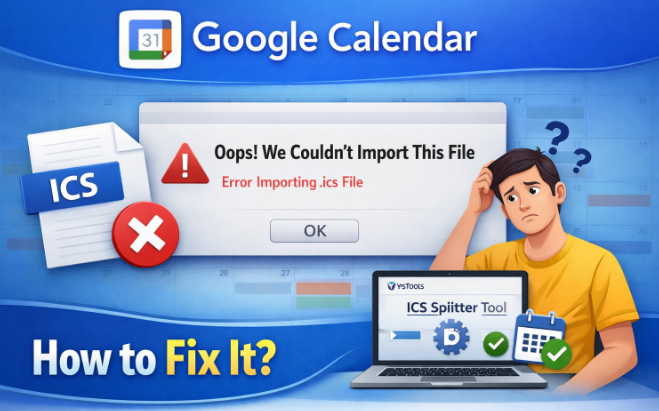
Google Calendar is one of the most widely used scheduling platforms, allowing users to import events through ICS files. However, many users encounter a frustrating error message: google calendar oops we couldn't import this file. This issue typically appears when importing calendar files created by Outlook, Apple Calendar, Zoho, or other calendar applications.
What Does “Google Calendar Oops We Couldn't Import This File” Mean?
The error Google Calendar oops we couldn't import this file appears when Google Calendar fails to validate an ICS file during the import process. In most cases, this error is linked to:
- Corrupt or oversized ICS files
- Unsupported calendar properties
- Invalid date/time formatting
- Incorrect file encoding
- Excessive calendar entries
Users may also see related errors, such as oops we couldn't import this file Google Calendar, all pointing to the same underlying issue with file incompatibility.
Common Causes Behind Google Calendar Unable to Import ICS
Before moving on to solutions, it is important to understand why google calendar oops we couldn't import this file occurs.
- Oversized ICS File:
- Corrupted or Incomplete ICS Data
- Unsupported Calendar Attributes
- Incorrect Date-Time Format
- Multiple Calendars in a Single ICS File
Method 1: Verify the ICS File Before Importing
The first troubleshooting step when encountering google calendar oops we couldn't import this file is to check the ICS file manually. The steps to use this tool are:
- Open the ICS file using a text editor like Notepad.
- Ensure the file begins with BEGIN: VCALENDAR and ends with END: VCALENDAR.
- Check for incomplete VEVENT blocks.
- Confirm that all date-time fields follow the correct format (YYYYMMDDTHHMMSS).
- This method works only for small files and users with technical knowledge.
Method 2: Import ICS File Using the Correct Google Calendar Account
Sometimes, google calendar unable to import ics occurs due to account permission issues. To use this method the steps are as follows:
- Sign in to Google Calendar using the correct Google account.
- Click the gear icon → Settings.
- Select Import & Export.
- Choose the correct calendar destination.
- Upload the ICS file again.
If the error Google Calendar oops we couldn't import this file persists, move to the next method.
Method 3: Re-Export the Calendar from the Source Application
Sometimes the issue lies in how the ICS file was generated. The steps are as follows:
- Open the source calendar (Outlook, Apple Calendar, etc.).
- Re-export the calendar using default settings.
- Avoid including attachments or private properties.
- Try importing the new ICS file into Google Calendar.
If you still see Google Calendar oops, we couldn't import this file, the file structure may still be incompatible.
Method 4: Use a Different Browser or Clear Cache
Browser-related issues can sometimes trigger Google Calendar unable to import ics. The step-by-step guide of this software is given below:
- Clear browser cache and cookies.
- Try importing the file using an incognito window.
- Switch to another browser like Chrome or Edge.
- Upload the ICS file again.
This solution works only in rare cases and does not fix file-level problems.
Limitations of Manual Methods
While the above methods may help, they come with significant limitations:
- Not effective for large or complex ICS files
- Requires technical expertise
- High risk of data loss
- Extremely time-consuming
- No guarantee of success
When manual fixes fail repeatedly, users continue seeing google calendar oops we couldn't import this file, making an automated approach essential.
How to Fix ICS File Not Adding to Google Calendar? Expert Solution
To permanently fix Google Calendar, oops, we couldn't import this file, using an automated tool is the most reliable approach. The SysTools ICS Splitter Tool is specifically designed to handle large, complex, or corrupted ICS files and make them fully compatible with Google Calendar. Some of the advantages are given below:
- Splits large ICS files into smaller, Google-compatible files
- Preserves all calendar events and metadata
- Maintains original date, time, and timezone
- Eliminates file corruption issues
- Prevents oops we couldn't import this file Google Calendar errors
Detailed Steps of This Tool
- Download and Install the Software
- Choose the split ICS file option from the tab
- Then, click on the add file option to upload the ICS file
- Choose the splitting option and select the Destination Path
- Click on the split option and begin the process.
Best Practices to Avoid Google Calendar Import Errors
To prevent Google Calendar oops we couldn't import this file in the future. You can follow these tips:
- Always keep ICS files under size limits
- Avoid exporting unnecessary calendar properties
- Split large calendars before importing
- Use reliable tools for calendar management
- Validate ICS files before upload
Conclusion
The error google calendar oops we couldn't import this file is common but solvable. While manual methods can help in minor cases, they often fail for large or complex ICS files. When users repeatedly face oops we couldn't import this file an automated solution becomes the most effective choice. The above mentioned tool offers a secure, efficient, and permanent fix by preparing ICS files in a format that Google Calendar can easily import without data loss or technical hassle.
Upgrade Your Rotation: U4GM MLB The Show 26 Gavin Williams Guide
Gavin Williams is a strong target for Diamond Dynasty players looking to add another power...
Flower Box Stand for Opening Ceremony and Condolences
Flower Box Stand for Opening Ceremony and Condolences


Looking for Tax Debt Relief Services in Canada? Read This Guide
Discover how tax debt relief services work in Canada, from CRA payment arrangements and ta...