Soren Doe @aceget 2 months ago Nice breakdown of microsoft dynamics 365 appointments not syncing to outlook causes and solutions.. Thanks for sharing.....
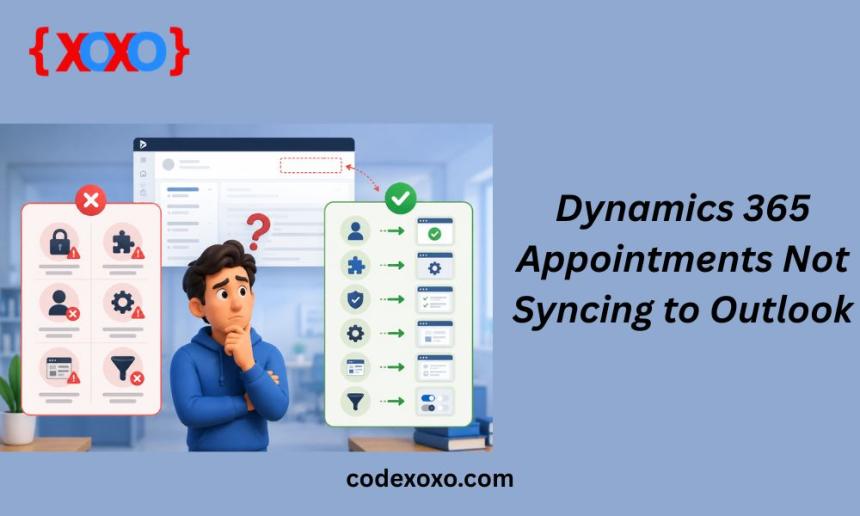

The Dynamics 365 Appointments Not Syncing to Outlook issue is a common problem that organizations face when synchronization settings or mailbox configurations are not working correctly.
Synchronization between Microsoft Dynamics 365 and Microsoft Outlook helps users manage appointments, meetings, and schedules efficiently across both platforms. When appointments fail to sync, it can create confusion, missed meetings, and workflow disruptions. Many organizations rely on server-side synchronization to keep calendars updated automatically, so identifying and fixing syncing issues quickly is important for business productivity. The Dynamics 365 Appointments Not Syncing to Outlook issue is a common problem that organizations face when synchronization settings or mailbox configurations are not working correctly.
There are many possible circumstances causing appointments in Dynamics 365 to not sync with Outlook, but mailbox configuration issues are one of the most frequent reasons why synchronization has failed. There can be errors with the mailbox not having been approved or tested successfully, both of which would lead to no synchronization. An additional, very common issue that can affect mailbox configuration is incorrect configurations of the server-side synchronization settings, which are needed to allow Dynamics 365 to connect through Outlook and Exchange services via proper synchronization methods.
The first solution to resolve an issue in Dynamics 365 is to check mailbox settings. To do this, administrators must access the mailbox configurations. After accessing these configurations, administrators should check that the mailbox has been approved for server-side synchronization and has it been enabled for that purpose. Then, the next step would be to execute the Test & Enable Mailbox option. If any errors happen while testing, administrators should first check the errors associated with the mailbox, including details about authentication or connection errors, and correct those errors prior to trying again to sync the mailbox to D365.
The best way to integrate Dynamics 365 with Outlook is through server-side synchronization. An administrator should ensure that the appointments, contacts, and tasks sync options are turned on in the system settings. Additionally, the admin should make sure that both incoming and outgoing emails, and calendar events are configured correctly for their respective sync methods, as incorrect configuration can result in calendar events not syncing correctly.
Permissions that are inadequate have potential for preventing sync of appointments from occurring. Staff need security roles with correct privileges for access to mailbox settings and Calendar records. Sync and appointment management specific permissions in Dynamics 365 need to be assessed by Administrators.
At times, sync processes can be interrupted by corrupt caching files within Outlook. To remedy this situation, one should try clearing the Outlook cache and restarting their application(s). Also make sure both versions of the applications are up-to-date so there are no bugs or performance issues caused by older software. Newer updates usually come with fixes for bugs related to synchronizing - performance issues as well.
Local configuration issues are not always the source of a problem. Temporary outages that occurred in Microsoft Exchange Online Services and Dynamics 365 Services can interrupt synchronization. To check if your version of Outlook or Dynamics 365 is working properly, you'll want to look at the Microsoft Service Health Dashboard to see if there are any service issues currently occurring.
The Outlook Sync Problem in Microsoft Dynamics 365 is typically a result of problems with mailbox configuration, synchronization settings or failures, and authentication or cache issues. To fix this problem, organizations should check their mailbox status; review server-side synchronization settings; check their permissions; and update their applications to restore reliable appointment syncing and smooth calendar management between Dynamics 365 and Outlook.
Soren Doe @aceget 2 months ago Nice breakdown of microsoft dynamics 365 appointments not syncing to outlook causes and solutions.. Thanks for sharing.....
Trusted Online Gaming and Casino Platform sunwin


Trang chu MUBET – Nen tang giai tri truc tuyen chuyen nghiep va hien dai